개요
1편에서는 이론적인 부분에 대해 간략히 소개했다. 그래서 이번 포스트에서는 해당 프로젝트의 기능들에 대해서 살펴보고 설명할 것이다. 코드가 생략된 부분이 많은데 전체 코드를 깃허브에서 보면 몇 줄 안되고 어려운 부분도 없다. 데모를 온라인 상으로 실행해볼 수 있다.
좌표 생성 및 이벤트
좌표 생성 및 삭제
// Board.js
init = () => {
    // initiate some...
    this.state = {
        selected: -1,
        coords: [],
    };
    this.canvas.addEventListener('dblclick', this.markCurrentPosition);
}

// utils.js
const getMousePosition = ev => ({
    x: ev.offsetX,
    y: ev.offsetY
});
먼저 dblclick 이벤트로부터 더블 클릭한 현재 마우스의 좌표 값을 가져오는 함수를 만들고 이 좌표를 coords 배열에 담아 둘 것인데 화면상의 표시와 좌표의 선택, 삭제 등등에 필요하다.
// Board.js
markCurrentPosition = (ev) => {
    const { x, y } = getMousePosition(ev);
    this.probeDotList(x, y);
    if (this.state.selected >= 0) {
        this.state.coords = this.state.coords.filter((_, i) => i !== this.state.selected);
        this.state.selected = -1;
    }
    else {
        this.state.coords.push({ x, y });
    }
}markCurrentPosition()은 더블 클릭 이벤트가 발생했을 때 getMousePosition()을 호출하여 좌표값을 받고 probeDotList()를 호출한다. probeDotList()는 현재 더블 클릭한 좌표 반경에 이미 기존의 값이 있는지 탐색하고 선택된 좌표가 존재하는 경우 selected 값은 coords배열에서 좌표가 위치하는 인덱스 값이 된다. 따라서 selected가 0보다 큰 경우 기존에 존재하는 좌표 반경을 더블 클릭하였다는 것이므로 선택된 좌표를 배열에서 제거하고 그렇지 않은 경우 새로운 좌표값을 배열에 추가한다.
좌표 탐색
// Board.js
probeDotList = (inputX, inputY) => {
    for (let i = 0; i < this.state.coords.length; i += 1) {
        const { x, y } = this.state.coords[i];
        if (this.isExist(x, y, inputX, inputY)) {
            return this.state.selected = i;
        }
    }
}

isExist = (x, y, inputX, inputY) => {
    const radius = 10;
    const xpb = x + radius;
    const xnb = x - radius;
    const ypb = y + radius;
    const ynb = y - radius;
    return (x >= -1 && y >= -1 && x <= WIDTH && y <= HEIGHT && (inputX <= xpb && inputX >= xnb && inputY >= ynb && inputY <= ypb));
}
probeDotList() 메소드는 coords배열을 순회하면서 isExist() 메소드를 호출한다. isExist() 메소드는 더블 클릭한 좌표가 캔버스 영역 내부에 존재하는지 그리고 좌표 반경내에 클릭이 되었는지에 대한 여부를 불리언 값으로 반환한다. 이 값이 true인 경우 클릭한 지점에 좌표가 존재한다는 뜻이므로 probeDotList() 메소드에서 selected의 값을 coords배열에 존재하는 좌표의 인덱스 값으로 설정한다.
반대로 더블 클릭한 좌표 부근에 점이 없는 경우 probeDotList()는 아무일도 하지 않으므로 selected는 -1일 것이고 markCurrentPosition()에서 새로이 좌표가 생성된다.
좌표 이동
// Board.js
init = () => {
    // ...initiate some
    this.canvas.addEventListener('mousedown', this.onMouseDown);
    this.canvas.addEventListener('mousemove', this.onMouseMove);
    this.canvas.addEventListener('mouseout', this.onMouseOut);
    this.canvas.addEventListener('mouseup', this.onMouseUp);
}

onMouseDown = (ev) => {
    ev.preventDefault();
    const { x, y } = getMousePosition(this.canvas, ev);
    this.probeDotList(x, y);
}

onMouseMove = (ev) => {
    ev.preventDefault();
    if (this.state.selected < 0) return;
    this.state.coords[this.state.selected].x = ev.offsetX;
    this.state.coords[this.state.selected].y = ev.offsetY;
    // ...draw canvas
}

onMouseOut = (ev) => {
    this.state.selected = -1;
}

onMouseUp = (ev) => {
    this.state.selected = -1;
}- mousedown: 마우스가 눌러질 때 발생
- mousemove: 마우스가 움직일 때 발생
- mouseup: 마우스가 눌렸다가 떼어질 때 발생
- mouseout: 타겟 엘리먼트 내에 마우스가 존재하지 않을 때 발생
onMouseDown() 메소드에서 클릭된 지점에 해당 하는 점이 존재하는 지 파악하고 만약 존재한다면 앞에서 설명한 것 처럼 selected의 값이 coords 배열에 존재하는 좌표의 인덱스 값이 될 것이다.
onMouseMove()에서 좌표가 존재하는 경우 selected 값이 -1 보다 클 것이므로 마우스가 움직인 좌표로 원본 좌표의 값을 변경해주면 된다. 마우스를 떼거나 캔버스 영역을 벗어날 때 -1로 설정해주도록 해서 원하지 않을 때 값이 변경되지 않도록한다.
애니메이션 실행
// Board.js
runAnimate = () => {
    // ...do something
    this.animationState.startTime = Date.now();
    this.animate();
    return;
}

animate = () => {
    const currentTime = Date.now();
    this.raf = requestAnimationFrame(this.animate);
    this.calculateBezier((currentTime - this.animationState.startTime) / this.animationState.animateTime);

    if (currentTime - this.animationState.startTime > this.animationState.animateTime) {
        // ...draw canvas and initiate animation state
        cancelAnimationFrame(this.raf);
    }
}runAnimate()는 애니메이션이 시작될 때 시작한 시간을 기록하고 animate()를 호출한다. animate() 메소드에서는 requestAnimationFrame(raf)을 이용하여 화면을 그려주는 역할을 한다. raf는 화면이 새롭게 리페인트 되기전에 실행할 콜백 함수를 파라미터로 받아서 콜백 함수를 실행하고 리턴 값으로 고유 id 값인 0이 아닌 정수를 반환한다. 이 값을 이용해 다음 리페인트를 위해 재귀적으로 호출하거나 cancelAnimationFrame을 호출하여 중단할 수도 있다.
requestAnimationFrame은 자주 쓰이고 중요하므로 알아두면 좋을 것 같다.
raf의 콜백 함수로 넘겨준 animate()는 매 호출마다 시작 시간과 현재 시간 그리고 애니메이션이 진행되는 시간을 이용해서 t 값을 구한 다음 베지어 곡선을 계산하는 calculateBezier() 메소드의 파라미터로 넘겨준다.
(현재 시간 - 시작 시간) / 실행되는 시간
- 현재 시간: 매 프레임마다
raf가 실행될 때 측정된다. - 시작 시간: 최초로 애니메이션 시작이 되는 순간의 시간.
- 실행되는 시간: 전체 애니메이션이 실행되는 시간.
매 프레임마다 t값이 갱신되며 베지어 곡선을 계산하는 메소드를 호출하다가 전체 실행되는 시간을 초과하게 되면 애니메이션을 중지하게 된다. 실행 시간을 길게 하면 느리게 움직이고 실행 시간을 짧게하면 빨라지게 된다.
베지어 곡선 계산
1편에서 살펴보았듯이 블렌딩을 이용할 것이다. 먼저 1차원의 두 점을 블렌딩해주는 함수 blender와 2차원 좌표를 블렌딩해주는 함수 blend를 선언하였다. 관련된 포스트에서 간단한 이론적 배경을 확인할 수 있다.
// utils.js
const blender = (p1, p2, t) => {
    if (t <= 0) return p1;
    if (t >= 1) return p2;
    return ((1 - t) * p1) + (t * p2);
};

const blend = (x1, x2, y1, y2, t) => {
    const x = blender(x1, x2, t);
    const y = blender(y1, y2, t);
    return { x, y };
};blender()함수는 1차원의 두 점을 받아 t에 따라 보간을 계산한다. 그러나 blender()는 좌표에서 한 부분만 담당하므로 blend()함수에서 각각 따로 계산한 값을 구해준다.
// Board.js
calculateBezier = (t) => {
    const calculatePosition = (coords, t) => {
        if (coords.length < 2) return;
        const calced = [];
        for (let i = 1; i < coords.length; i += 1) {
            const { x, y } = blend(coords[i - 1].x, coords[i].x, coords[i - 1].y, coords[i].y, t)
            calced[i - 1] = { x, y };
        }
        // ...draw canvas
    calculatePosition(calced, t);
};
    // ...draw canvas
    calculatePosition(this.state.coords, t);
}calculateBezier()메소드는t값과 생성되어 있는 조절점들의 좌표를caculatePosition()에 파라미터로 넘기고 호출한다.- 이 함수는 넘겨 받은 좌표와
t값을 이용해서 각 선분에 대해서 블렌딩을 계산한다. - 블렌딩 계산을 마친 좌표의 값들을
calced배열에 담아서 다시 자신을 호출한다. - 2와 3을 넘겨받은 좌표를 담은 배열의 길이가 2가 될 때 까지 반복하게 되는데 마지막 호출에서 나온 길이가 1인 좌표가 바로 베지어 곡선을 그리는 점의 좌표이다.
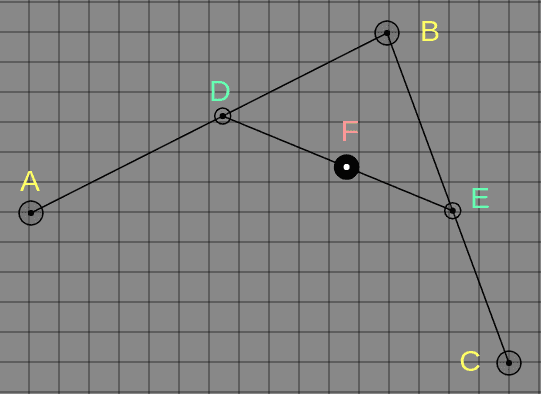
위 과정을 그림을 통해 보면 더블 클릭을 통해 생성한 점들 A, B, C는 coords배열에 담기게 되고 애니메이션을 실행하면 이 배열을 calculatePosition()에서 계산을 한다. 계산을 통해 나온 점들의 좌표가 담긴 calced에는 D, E가 담겨 있고 다시 calculatePosition()을 호출한다. 계산 결과 나온 값이 바로 F가 되고 이 F가 베지어 곡선을 그리는 점이 된다.
추가적으로 Coderifleman’s blog에 베지어 곡선과 관련하여 잘 정리되어 있으니 참고하면 좋다.
참조(References)
- “프런트엔드 엔지니어를 위한 베지에 곡선(Bezier Curves) - 3편”, Coderifleman’s blog, https://blog.coderifleman.com/2017/03/19/bezier-curves-for-frontend-engineer-3/.